
Occasionally, the data transfer from your Slingshot to the cloud and then to the app on your phone can be slowed down by having multiple tracked rides stored on your vehicle. The process of deleting tracked rides may help alleviate this issue. The following steps show how to delete tracked rides from the 7” Display powered by RIDE COMMAND on your Slingshot.
Note: Photos were taken on a 2025 Slingshot R AutoDrive.
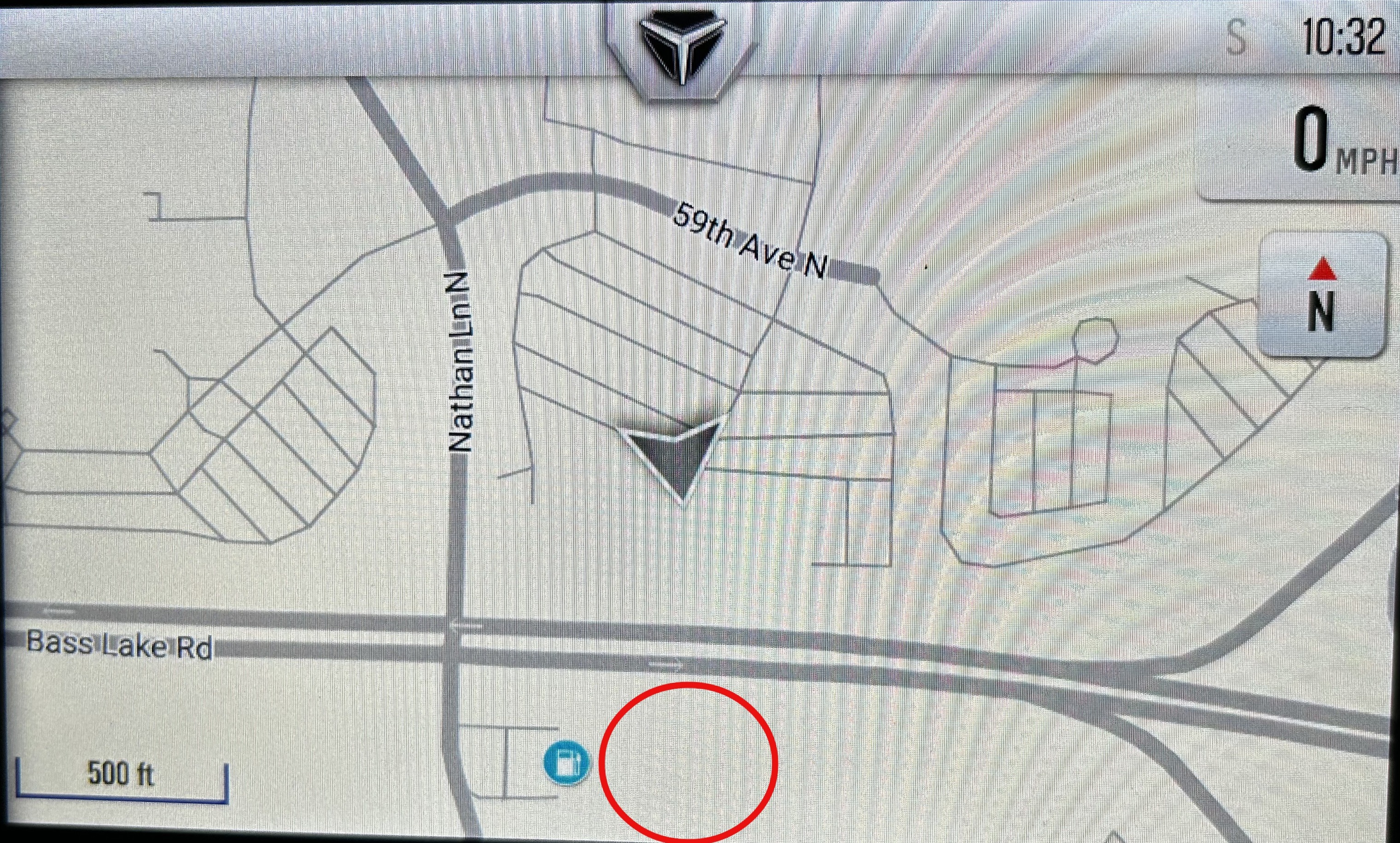
Navigate to the map screen on your Slingshot’s display. By tapping the bottom of the screen where circled below, menu options will appear.
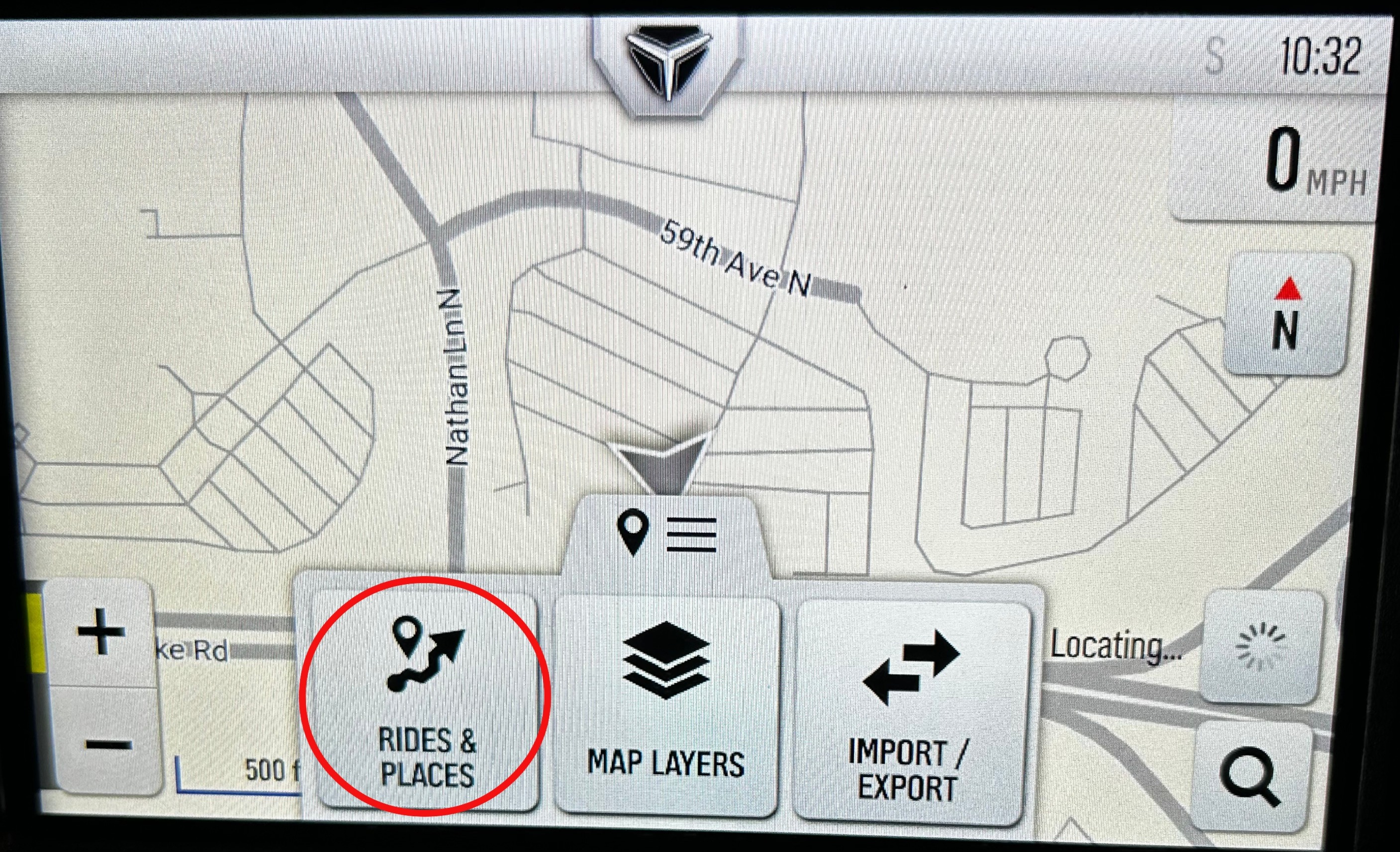
When the menu options appear, tap the left option titled “Rides & Places”.
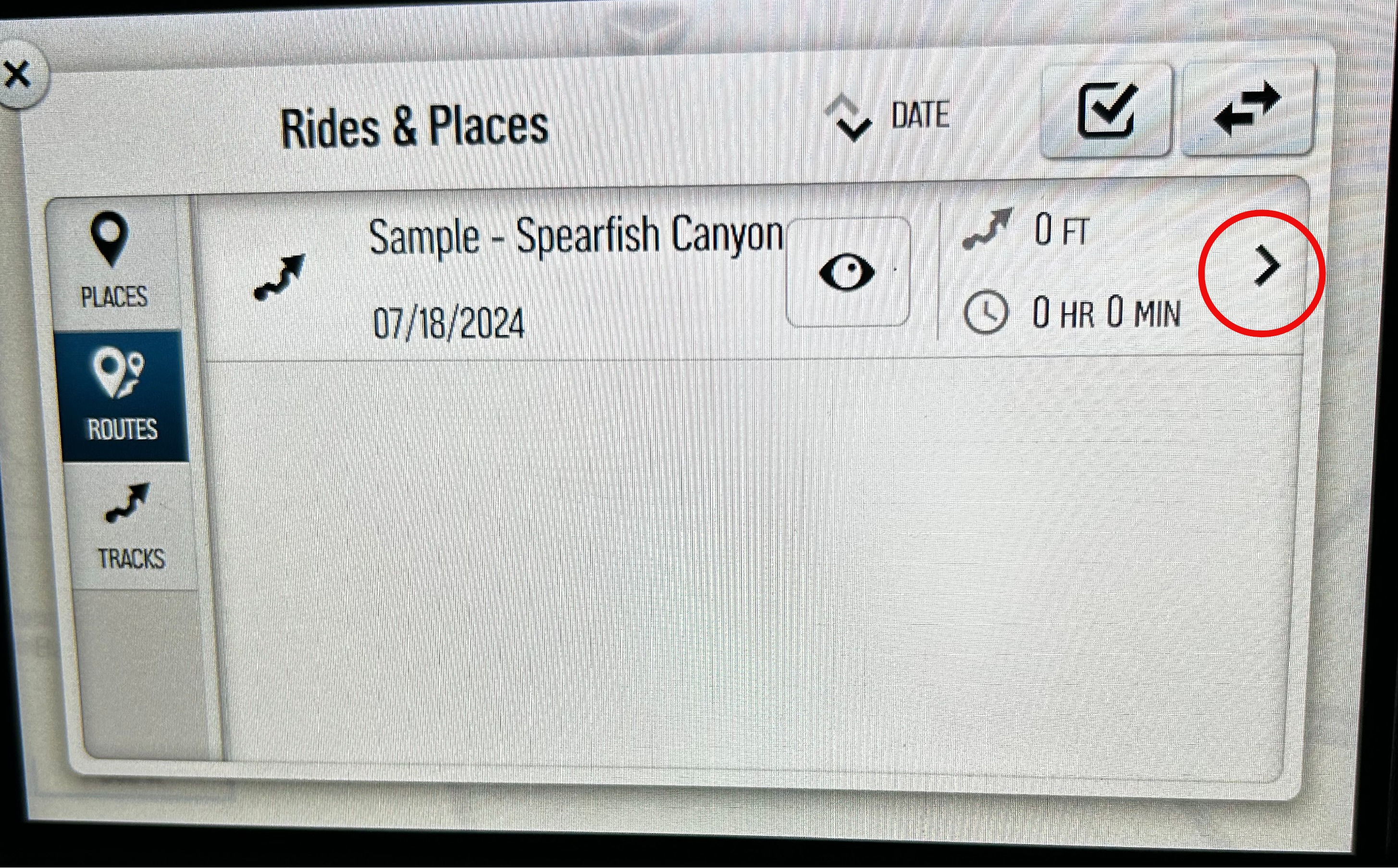
A list of rides and places will appear. Tap the arrow > on the right side of the tracked ride you wish to delete.
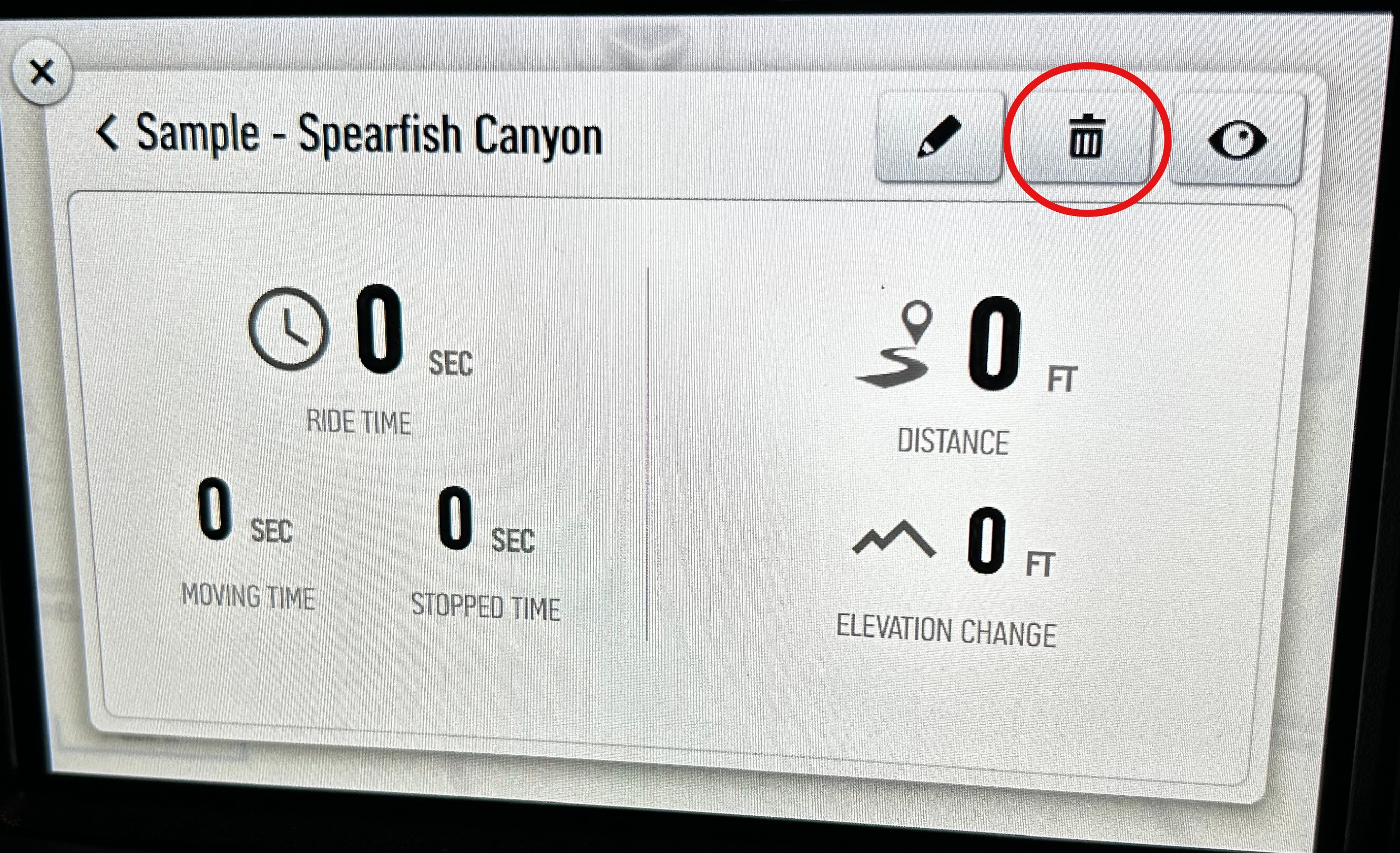
The details of that ride will then come up. Tap the trash can icon in the upper right corner to delete this tracked ride.
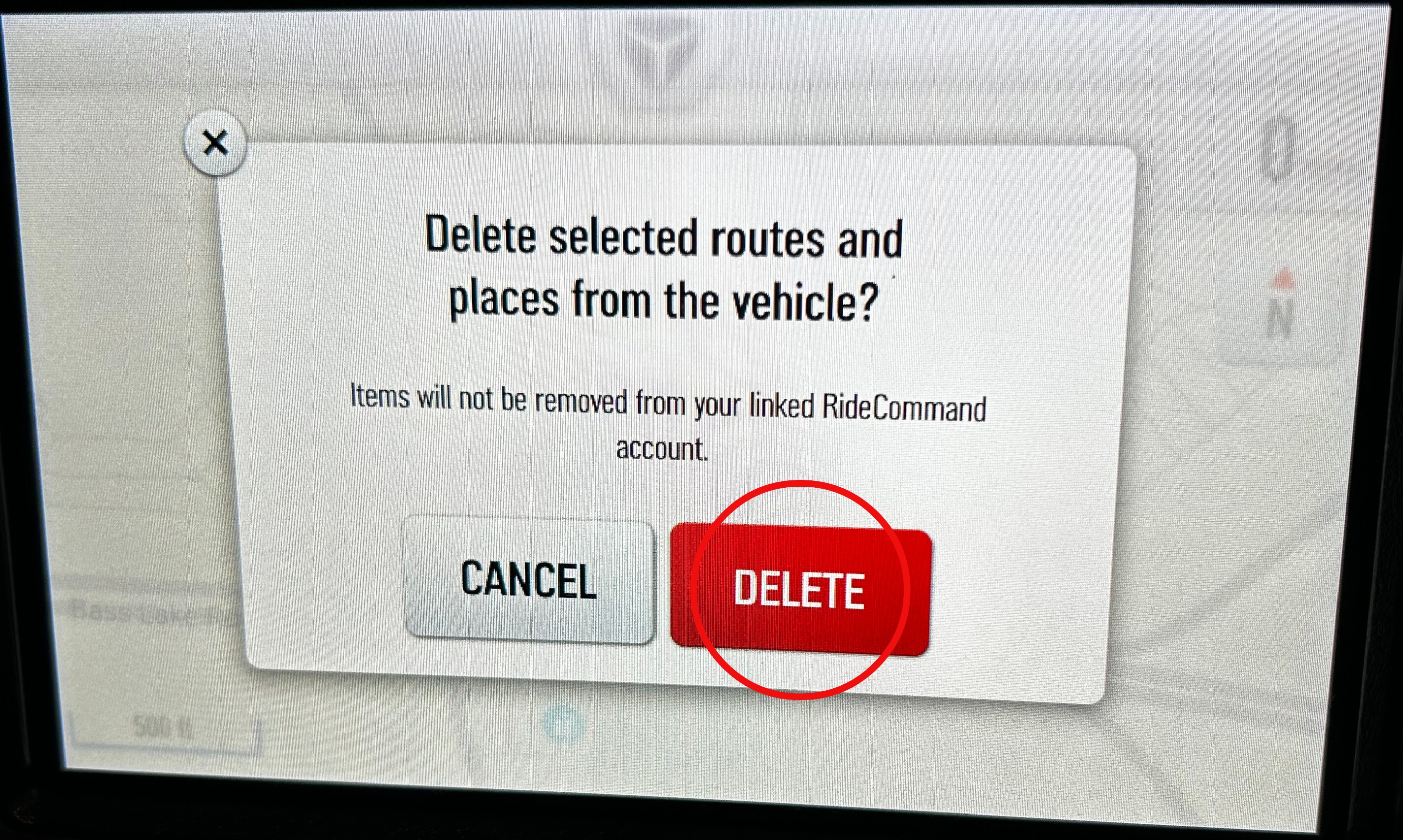
A confirmation screen will appear. Tap the red “Delete” button to confirm you want to delete that tracked ride.
For more information, visit the Slingshot RIDE COMMAND website.
More information about RIDE COMMAND can be found in the Owner's Manual for your vehicle.
Read Overview of the 2020+ 7" Display Powered by RIDE COMMAND for more information about your display.
The Slingshot App is available on the App Store® and Google Play®.
App Store® is a registered trademark of Apple Inc.
Google Play® is a registered trademark of Google LLC
Unless noted, trademarks are the property of Polaris Industries Inc.
© 2025 Polaris Industries Inc.


